

Overview
The app has three main pages that you can switch between.
The Setup page lets you control the settings of the spectrometer.
The Absorbance page lets you setup and cary out absorbance measurements using the spectrometer's white transmission LED.
The Fluorescence page lets you setup and cary out fluorescence measurements using the spectrometer's 90° UV LED.
More details
-
Setup
Status indicator: The 6 coloured circles will appear in sequence as the app starts up, connects to the spectrometer and initialises the spectrometer components. When all 6 circles show up, the spectrometer is connected and ready to use. As long as spectrometer is powered, this should take around 5 seconds from opening the app.
Settings: This button takes you to the settings screen.
LED 1: This sets the brightness of the white transmission LED.
LED 2: This sets the brightness of the UV fluorescence LED.
Gain: This sets the sensitivity of the light sensor (higher gain gives a larger signal but higher noise).<
Exp: This sets the integration time of the light sensor (longer integration time gives a larger signal, but slower acquisition).
Graph: This graph shows the light intensity at the 8 different wavelengths that the spectrometer measures across the visible spectrum.
Setup: Press from another screen to come back to this setup screen.
Absorbance: Press to switch to absorbance measurement.
Fluorescence: Press to switch to fluorescence measurement.
-
Absorbance
Absorbance LED: Switches the absorbance LED (LED 1) on or off, when on, the brightness will be as set in the setup screen.
Dark Spec: This button stores the current live intensity spectrum as the dark spectrum that is subtracted when calculating absorbance.
Reference Spec: This button stores the current live intensity spectrum as the reference spectrum that is used to calculate the absorbance.
Reset: This clears the currently stored dark and reference spectra.
Store Spec: This stores the current live spectrum. You will be asked to give the spectrum a name and then it will be displayed alongside the live spectrum. You can store as many spectra as you need. Stored spectra will be cleared if you force the app to close (although they should be ok if you just switch to another app and then back again), you need to save them using the save button.
Clear Stored: This clears the currently stored spectra.
Save: This allows you to save your stored spectra as a csv file. This can be shared using the in built sharing functions in iOS / iPadOS.
Graph: If dark and reference spectra have been set, this will show the current and stored absorbance spectra, if the dark or reference spectra have not been set, this will show the current and stored intensity spectra. You can change the scale on the spectrum by dragging / pinching with two fingers on the screen and then you can drag the plot around to see different areas.
Setup: Press to switch to the setup screen.
Absorbance: Press from another screen to come back to this absorbance screen.
Fluorescence: Press to switch to fluorescence measurement.
Note: Switching to this screen will not automatically turn off the fluorescence LED (LED 2), you will normally want to make sure this is turned off either on the setup screen or using the toggle on the fluorescence screen.
-
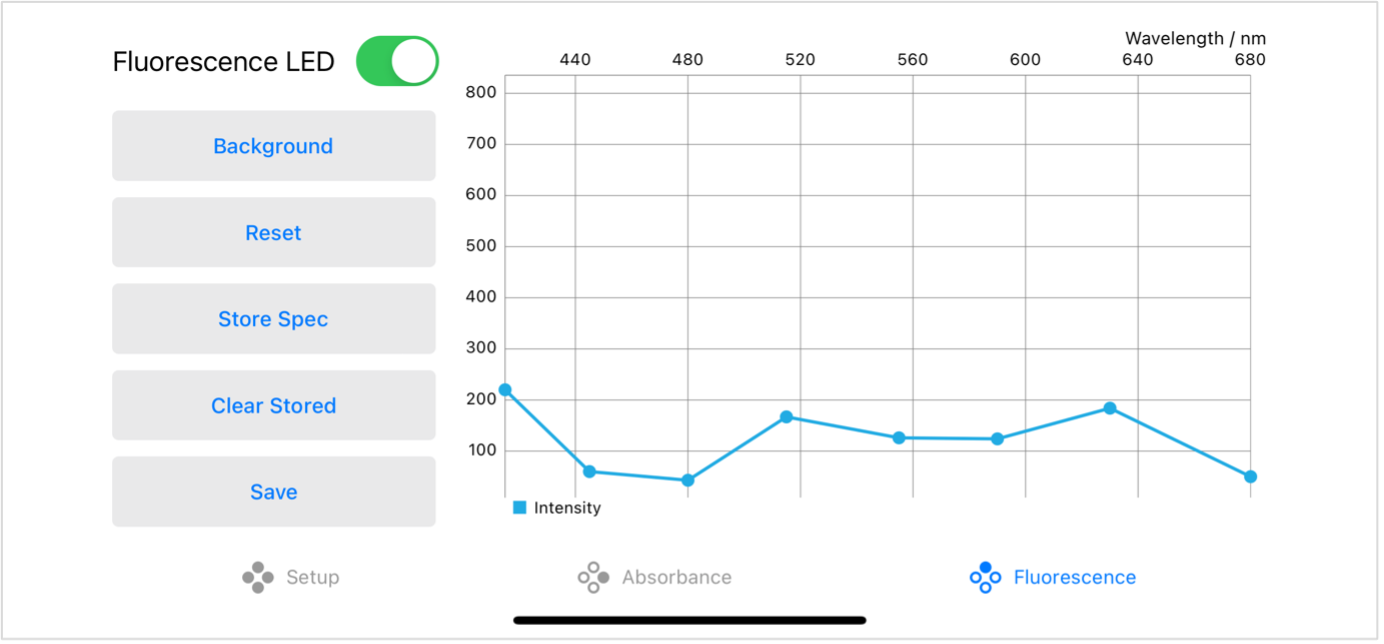
Fluorescence
Fluorescence LED: Switches the fluorescence LED (LED 2) on or off, when on, the brightness will be as set in the setup screen.
Background: This button stores the current live intensity spectrum as the background spectrum which is then subtracted from the signal.
Reset: This clears the currently stored background spectrum.
Store Spec: This stores the current live spectrum (including background subtraction if a background spectrum has been set). You will be asked to give the spectrum a name and then it will be displayed alongside the live spectrum. You can store as many spectra as you need. Stored spectra will be cleared if you force the app to close (although they should be ok if you just switch to another app and then back again), you need to save them using the save button.
Clear Stored: This clears the currently stored spectra.
Save: This allows you to save your stored spectra as a csv file. This can be shared using the in built sharing functions in iOS / iPadOS.
Graph: This shows the current and stored intensity spectra, if a background spectrum has been set, this is subtracted from the live intensity signal.
Setup: Press to switch to the setup screen.
Absorbance: Press to switch to absorbance measurement.
Fluorescence: Press from another screen to come back to this fluorescence screen.
Note: Switching to this screen will not automatically turn off the absorbance LED (LED 1), you will normally want to make sure this is turned off either on the setup screen or using the toggle on the absorbance screen.