
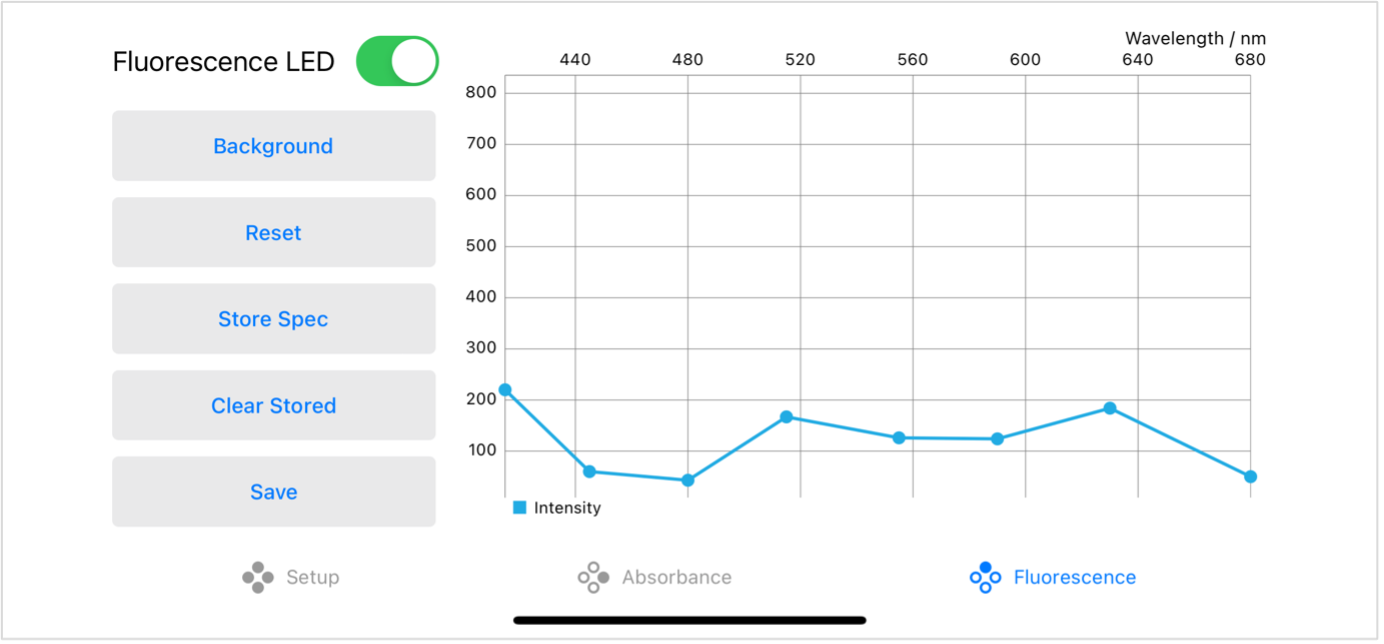
Fluorescence
The Fluorescence page lets you setup and cary out fluorescence measurements using the spectrometer's 90° UV LED.
See below for step by step instructions for setting up a fluorescence measurement.
More details
-
Making a fluorescence measurement
Make sure there is no sample or cuvette in the spectrometer.
On the settings screen set the brightness of LED 2 to maximum and the brightness of LED 1 to zero.
You will likely see a signal very close to zero because the UV fluorescence LED is at 90 degrees to the detector.
Place a sample in the spectrometer that you expect to give a high fluorescence signal.
Adjust the gain and exposure time until you see a signal. The fluorescence signal is likely to be quite low intensity, so you will need much higher gain and exposure settings than for an absorbance measurement, you are also likely to need to expand the intensity axis to see the signal. The settings required for a fluorescence experiment will depend on the sample, but for a strongly fluorescent solution a good starting point would be a gain of 512x and exposure time of around 2000ms. Intensity signals are likely to be around 1000. Note that with these settings, the spectrum will need at least 4 seconds to stabilise when any change are made.
Switch to the ‘Fluorescence’ screen.
Turn off the fluorescence LED using the toggle switch.
Wait for the spectrum to stabilise (this will take at least twice as long as the exposure time you have set).
The intensity signal should drop close to zero.
Press the ‘Background’ button. This records the background spectrum which is subtracted from the recorded intensity signal to take account of and stray light or baseline signal from the detector.
Turn the fluorescence LED back on using the toggle switch.
Ensure your sample is in the spectrometer.
Wait for the spectrum to stabilise.
You will see the fluorescence spectrum for your sample which you can store by pressing the ‘Store Spec’ button.
You can store the fluorescence spectra for multiple samples before saving your data.
You can reset the background spectrum by pressure the ‘Reset’ button, you will now see the intensity spectrum without any background subtraction and you can store a new background as above.
To save your data, click the ‘Save’ button. You can save the data to cloud storage or send it by email / message.