
Absorbance
The Absorbance page lets you setup and cary out absorbance measurements using the spectrometer's white transmission LED.
See below for step by step instructions for setting up an absorbance measurement.
More details
-
Making an absorbance measurement
Make sure there is no sample or cuvette in the spectrometer.
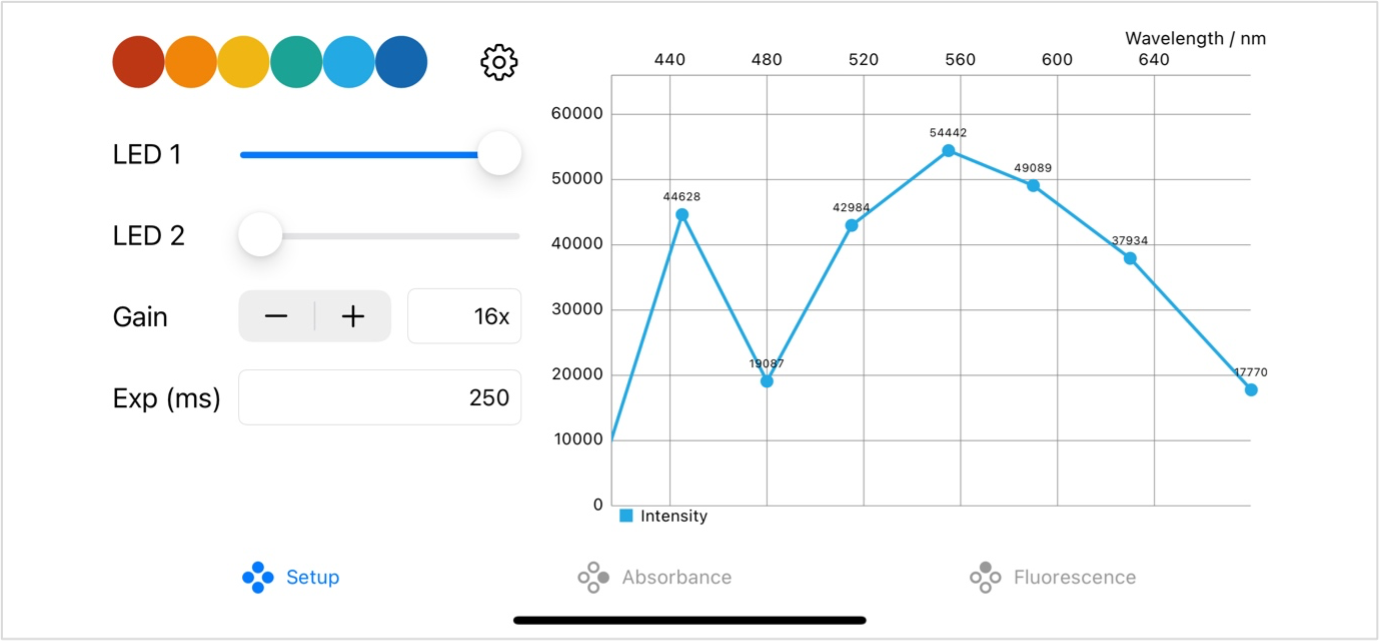
On the settings screen set the brightness of LED 1 to maximum and the brightness of LED 2 to zero.
You should see the intensity spectrum of the white LED, this will have a peak close to 440nm and then a broad hump centred around 580nm (see screenshot).
Adjust the gain and exposure time so the light signal is not saturated at any point across the spectrum. At exposure times of 200ms and above, the maximum signal is 65535. The maximum signal drops as the exposure time is reduced below 200ms. If you set an exposure time above 200ms, aim for a maximum signal of around 55000. Typical settings for an absorbance measurement are, maximum LED brightness, gain: 16x, exposure time 250ms.
If you need to reduce the amount of light your sample is exposed to you can reduce the LED brightness and then increase the gain and / or exposure time to increase the signal.
Switch to the ‘Absorbance’ screen.
Place a cuvette of your solvent in the spectrometer.
Turn off the absorbance LED using the toggle switch.
Wait for the spectrum to stabilise (this will take at least twice as long as the exposure time you have set).
The intensity signal should drop close to zero.
Press the ‘Dark Spec’ button. This records the dark background spectrum which is subtracted from the recorded intensity signal to take account of and stray light or baseline signal from the detector.
Turn the absorbance LED back on using the toggle switch.
Ensure your solvent sample is in the spectrometer.
Wait for the spectrum to stabilise (this will take at least twice as long as the exposure time you have set).
Press the ‘Reference Spec’ button. This records the reference spectrum which is used as the incident light intensity (I0) when calculating the absorbance.
The graph will switch to showing absorbance which should be close to zero across the full spectrum, although you will very likely see a little bit of fluctuation because of signal noise.
Place your sample into the spectrometer.
You will see the absorbance spectrum for your sample which you can store by pressing the ‘Store Spec’ button.
You can store the absorbance spectra for multiple samples before saving your data.
If you change the LED brightness, gain or exposure time, you should clear your dark and reference spectra using the ‘Reset’ button and then store new dark and reference spectra as above.
Samples that are prepared in the same solvent can use the same reference spectrum, but if you switch to a sample in a different solvent, you should clear the dark and reference spectra and record new ones as above.
To save your data, click the ‘Save’ button. You can save the data to cloud storage or send it by email / message.